Video & YouTube to DVD
Updated 2026-06-22 // Personal-archive referenceSometimes you need to go the other way — taking a video file and putting it on a disc that plays in a living-room DVD player. This is useful for sharing home movies with relatives who don't stream, making a keepsake disc, or playing your own footage on an older TV. This guide authors video you own or are licensed to use onto a playable DVD.
Author video you created or have the right to use — your recordings, home movies, and clips you are licensed to download and reuse. Downloading content you don't have rights to may breach a platform's terms or copyright law; please respect both.
How video-to-DVD works
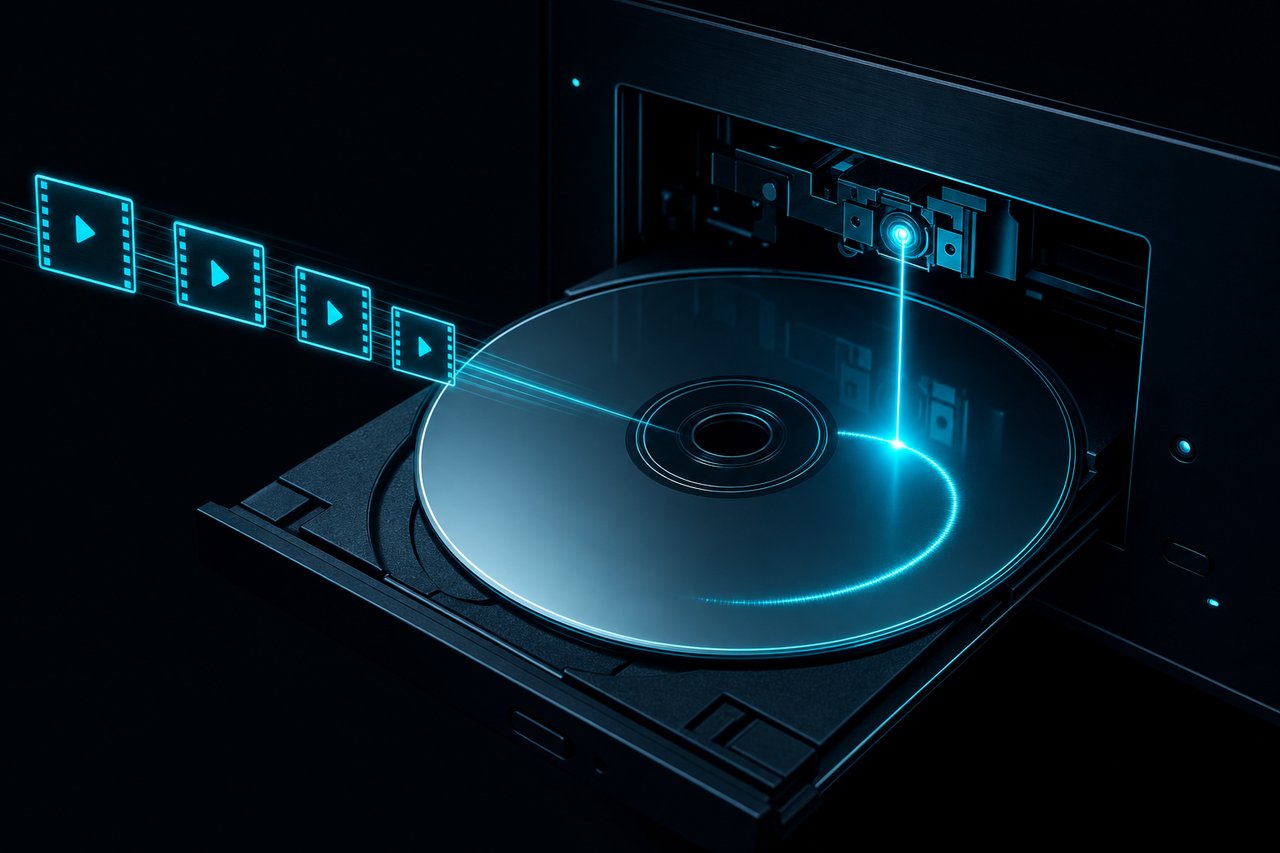
A DVD player doesn't read MP4 files — it expects the DVD-Video structure (VOB files indexed by IFO data, with the video as standard-definition MPEG-2). Authoring software re-encodes your file to that standard, optionally adds a menu, and writes it to a blank disc. The full background is in the DVD Creator overview; this page is the focused walkthrough.
Before you start
- Have the file ready: MP4, MOV, MKV and AVI are all common inputs.
- Know your length: about two hours fits a single-layer disc at good quality.
- Pick the standard: NTSC (North America, Japan) or PAL (much of Europe and Asia), matching where the disc will be played.
- Have blank media: DVD-R or DVD+R for best compatibility with older players.
Step by step
- Add your video file(s) to the project and arrange the play order.
- Choose NTSC or PAL and the aspect ratio (16:9 for widescreen, 4:3 for older footage).
- Optionally add a simple menu with a title and chapter buttons.
- Watch the capacity meter; if the project overflows a single-layer disc, lower the quality a little or switch to dual-layer.
- Insert a blank disc, choose a moderate burn speed, and start.
- Let the software finalise the disc, then test it in an actual DVD player.
Getting good results
Two things matter most. First, source quality: the disc can only be as good as the file you feed in, and DVD is standard definition, so a 1080p clip will be downscaled. Second, reliability: burn at a moderate speed on quality media and always finalise, so the disc plays on as many players as possible. For a disc that must work on an old or temperamental player, single-layer DVD-R is the safest bet.
Common mistakes to avoid
- Burning a data disc instead of DVD-Video. Dragging an MP4 onto a blank disc makes a data DVD that a computer reads but a TV player won't. You must author the video to the DVD-Video structure.
- Forgetting to finalise. An unfinalised disc may play in the burner that made it but nowhere else. Always let the software finalise so standalone players accept it.
- Burning at maximum speed. A slower, moderate burn on quality media produces a more reliable disc, especially for older or temperamental players.
- Overfilling the disc. Cramming three hours onto a single-layer blank forces the bitrate down and the picture falls apart. Watch the capacity meter, or switch to dual-layer.
Frequently asked questions
Why won't my disc play after burning?
Usually it was burned as a data disc rather than authored DVD-Video, was never finalised, or uses the wrong TV standard. Re-author as DVD-Video, finalise, and match NTSC/PAL.
Can I add a menu?
Yes. Most authoring tools let you pick a background, a title and chapter buttons, so the disc opens to a menu like a commercial release.
How many minutes fit on one disc?
Roughly 120 minutes at good quality on a single-layer disc, more if you lower the bitrate or use a dual-layer blank.
NTSC or PAL — which should I pick?
Match the player where the disc will be watched: NTSC for North America and Japan, PAL for most of Europe, Asia and Australia. Most modern players accept either, but an older standalone unit may only handle its regional standard, so choose to match the destination.
Can I make a disc from a phone recording?
Yes. Home-video clips from a phone are a common source — add the files, pick the right standard and aspect ratio, and author as usual. They will be downscaled to standard definition, since that is all DVD-Video supports.
Related reading
- DVD Creator — the full authoring and burning overview.
- DVD Copy — duplicate a disc you have already made.
- All format guides — step-by-step conversions for every target.