DVD Ripper
Updated 2026-06-22 // Personal-archive referenceRipping a DVD means reading the video and audio off a disc you own and saving it as a digital file on your computer. People do this to keep a personal backup of a collection that scratches or warps over time, to free up shelf space, or to play a title on a laptop, tablet or phone that no longer has an optical drive. This page explains what a DVD ripper actually does, which output formats make sense, and how a typical rip works from start to finish.
The methods here are written for personal archiving of discs you own — home movies, your own recordings, and commercial discs where format-shifting for personal use is permitted. Rules on copying encrypted commercial discs differ by country; defeating copy protection to share or redistribute content is out of scope and is not covered here. When in doubt, check the law where you live.
What a DVD ripper does
A DVD stores video as an MPEG-2 stream wrapped in VOB files, usually with AC-3 or PCM audio and a fixed standard-definition resolution (720×480 for NTSC, 720×576 for PAL). A ripper reads those streams, lets you pick the title, chapters, audio track and subtitles you want, and then either copies the stream as-is or re-encodes it into a modern, smaller format. The two jobs people mean by "ripping" are therefore slightly different:
- Extract — pull the existing MPEG-2 stream out with no quality loss, producing a large file that is essentially identical to the disc.
- Convert — re-encode to H.264 or H.265 so the file is far smaller and plays on almost any device, at the cost of a one-time, usually invisible, quality trade-off.
Choosing an output format
The right container depends on where the file will live and play:
| Format | Best for | Plays on |
|---|---|---|
| MP4 (H.264) | The safest all-round choice — smallest file at good quality. | Phones, tablets, smart TVs and every major player. |
| MKV | Keeping multiple audio tracks, subtitles and chapter markers in one file. | VLC, Plex, Kodi and most modern players. |
| MPEG-2 | Staying close to the original disc stream, or re-authoring later. | DVD authoring tools and legacy players. |
A typical rip, step by step
- Insert the DVD and let your ripping software scan the disc and list its titles.
- Select the main title — usually the longest one — plus any audio language and subtitle tracks you want to keep.
- Pick an output profile (for example "MP4 H.264, original resolution").
- Set the destination folder and, if offered, a target quality or bitrate. A constant quality setting around RF 18–20 (or its equivalent) keeps SD video looking faithful.
- Start the rip and let it run. A full disc takes roughly the length of the film on a modern machine, sometimes faster with hardware acceleration.
DVD ripping on Mac
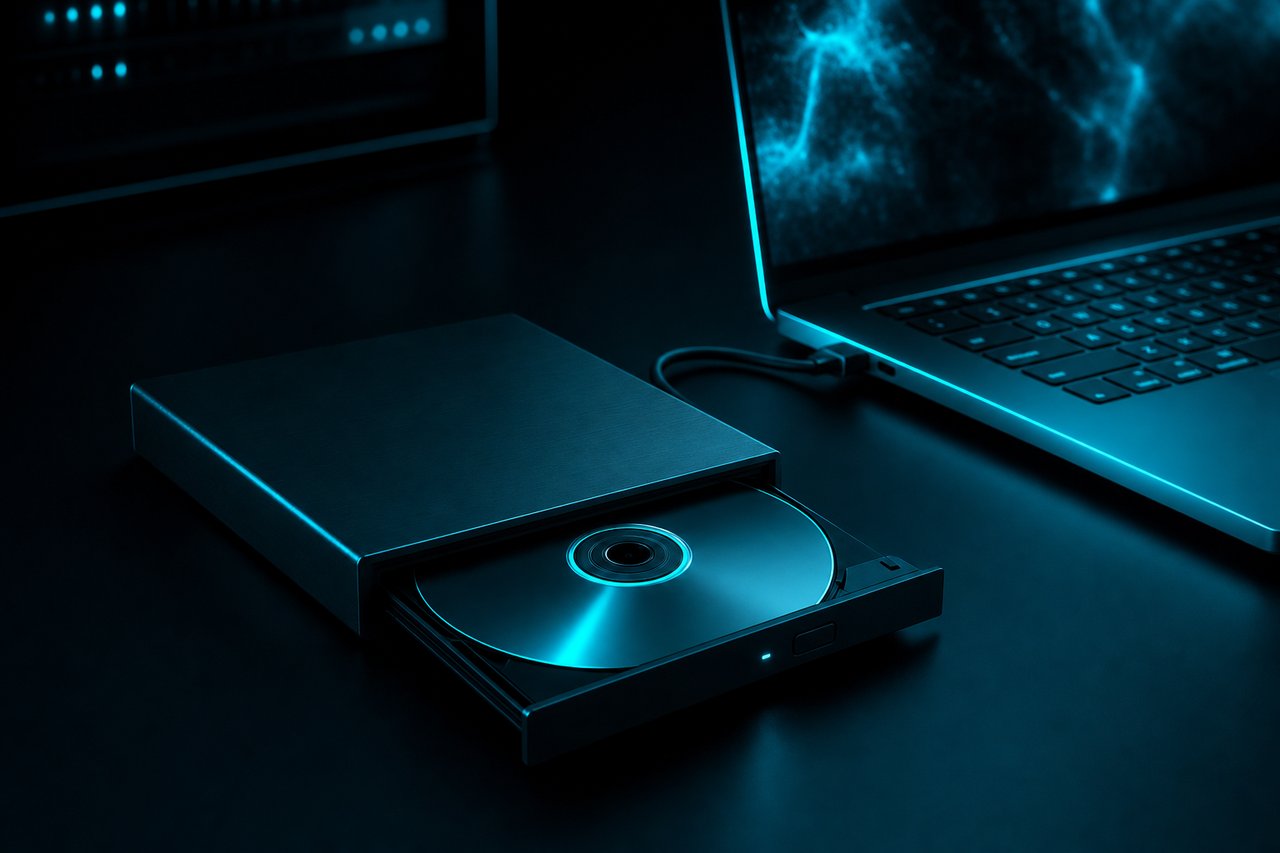
The workflow on macOS is the same in principle, with two practical notes. Most modern Macs have no built-in optical drive, so you will need an external USB DVD drive. And because recent macOS releases are notarised and sandboxed, prefer a tool that is actively maintained for Apple Silicon (M-series) as well as Intel. Once the drive is connected, scanning, title selection and encoding behave exactly as on Windows, and H.264/H.265 hardware encoding via VideoToolbox keeps rips fast and cool.
Keeping quality high
Because a DVD is already standard definition, the goal when ripping is to lose as little as possible rather than to "enhance". A few habits help: keep the original resolution rather than upscaling, leave the frame rate untouched so motion stays smooth, and choose a quality-based encode over a low fixed bitrate. If a disc is interlaced, enable deinterlacing so fast motion doesn't show comb lines on a progressive screen.
Frequently asked questions
How long does it take to rip a DVD?
On a current computer, expect roughly the running time of the film, often less with hardware acceleration. A 90-minute movie typically finishes in 20–45 minutes.
Which format should I pick if I'm not sure?
MP4 with H.264 video. It is the most widely compatible option and plays on practically every device without extra software.
Will ripping reduce the picture quality?
A direct extract keeps the disc quality exactly. A re-encode introduces a small, usually invisible loss; using a quality-based setting keeps it negligible.
Can I rip a disc on a Mac without an optical drive?
Yes — connect an external USB DVD drive and use ripping software built for current macOS. See the Mac section above.
Related reading
- DVD Copy — make a faithful 1:1 backup instead of a converted file.
- DVD Creator — author your own video back onto a playable disc.
- All format guides — step-by-step conversions for every target.